
- Author
- Editorial Team
- Published
- Reading time
- 5 min read
You open the Mil Win game, but instead of reaching the dashboard, the loading icon keeps spinning. Sometimes the app stops at the logo. On another attempt, the home screen appears but a specific game refuses to start.
Android loading problems can happen for several reasons: an unstable internet connection, a corrupted app cache, an outdated installed APK, or a phone that is simply running short on memory.
Before downloading the app again or changing important phone settings, it helps to identify where the problem actually starts.
Why Is Mil Win Not Loading on Android?
A loading problem does not always mean the entire app is broken. The issue can appear at different stages:
- Mil Win does not move past the opening logo;
- the dashboard takes too long to appear;
- a game remains on a loading screen;
- the app freezes right after login;
- one game fails while others work normally;
- loading stops when switching between mobile data and Wi-Fi.
Knowing which stage is failing narrows down the cause. For most Android users, it is worth checking the connection first and then moving through app, storage and device-related issues.
Test Your Internet Connection
Mil Win is an online platform, so its games need a working connection to load account and game data. Do not rely only on the Wi-Fi or mobile-data icon — a phone can show a connection even when it is slow or unstable.
Open another website or app and see how quickly it responds. If the connection is weak, switch from Wi-Fi to mobile data, or the other way around, then reopen Mil Win. If the game works on one connection but not the other, the problem is more likely the network than the app itself.
Close Background Apps
Older phones and devices with limited RAM can struggle when several apps run at once. A browser, a video app, a social network and Mil Win running together can put extra pressure on available memory.
Close apps you are not using and reopen the game. This is especially worth trying when menus feel slow, games freeze while opening, the app restarts on its own, or your phone becomes unusually warm.
Restart Your Android Phone
A restart sounds basic, but it clears temporary processes and starts Android with a fresh session. Restart normally, wait until the network reconnects, then open Mil Win before launching other apps.
If the game begins working normally, the loading problem was probably temporary. If nothing changes, continue with the next checks rather than restarting repeatedly.
Clear the Mil Win Cache
Android apps save temporary files so pages load faster, but damaged cache data can sometimes produce the opposite result. Mil Win may stay on its logo, freeze while opening a game, load an incomplete dashboard, or become slow after an update.
Settings → Apps → Mil Win → Storage → Clear Cache
The exact menu can look slightly different across Samsung, Xiaomi, Oppo, Vivo, Realme and other Android phones. Clear cache first — clearing all application data may remove local settings and require you to sign in again.
Check Whether a Mil Win Update Is Available
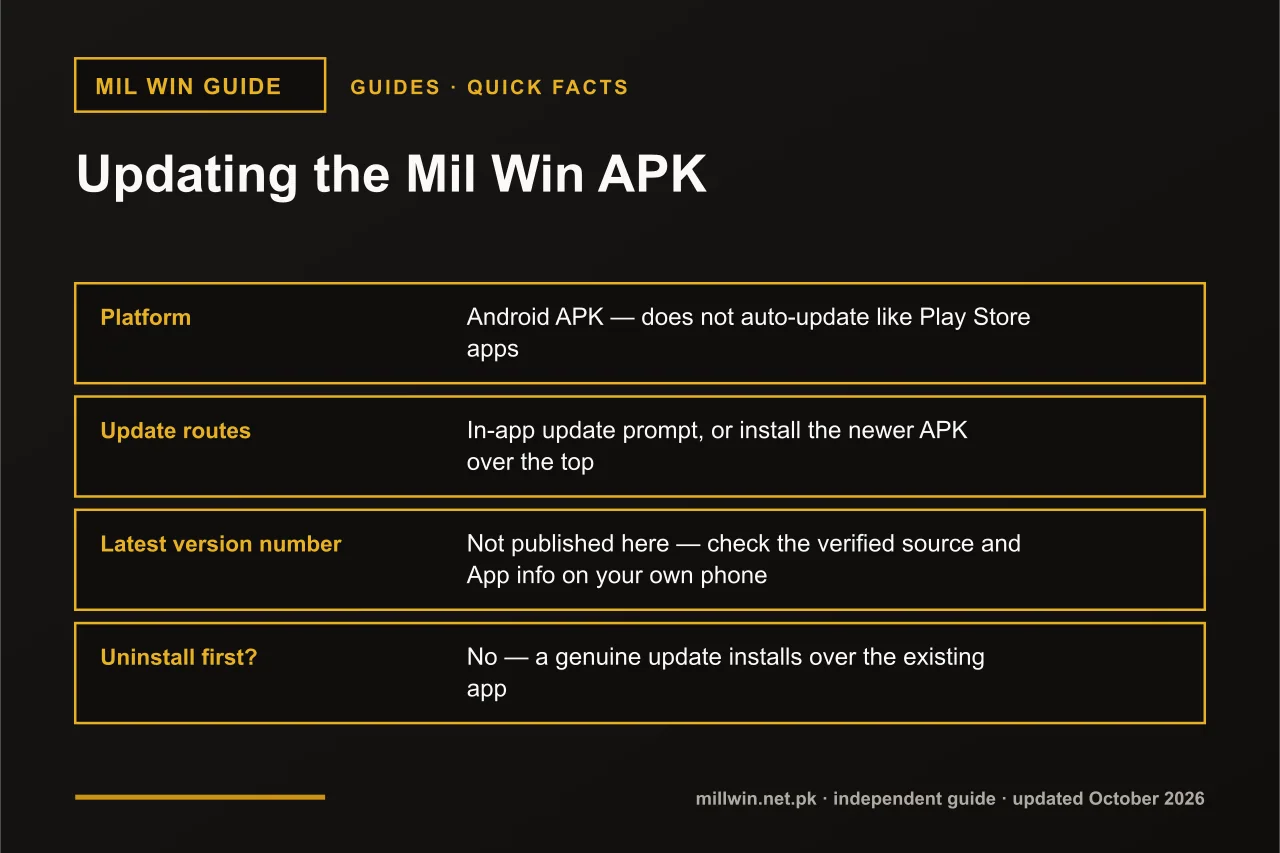
An outdated app may struggle to communicate with newer platform services. If the loading problem started after the platform changed or an update notice appeared, check whether your current version is still supported.
Different third-party sites can publish different version numbers, so a page claiming to have the "latest" APK should not automatically be trusted. Use the download source you have already verified, and install an update carefully rather than trying several unrelated files one after another.
See how Mil Win APK installation works →
Check Available Phone Storage
A nearly full phone can cause apps to behave strangely even when already installed. Android needs free storage for cache, temporary files, updates, system processes and downloaded game data.
Open your storage settings and check available space. Remove old videos, unused apps, duplicate files and previous APK downloads if space is running low, then restart Mil Win and see whether loading improves.
Check Android Compatibility
A newer app build may behave poorly on an old Android version — though not every loading problem means your version is unsupported. Check your software information under Settings → About Phone → Android Version, and install an official update if one is available for your device.
Mil Win Loads but a Game Does Not Open
This is different from the whole application failing. If you can open Mil Win, access your account, see your balance and browse the dashboard, but one particular game stays stuck, the problem likely relates to that game rather than the entire app.
Try another title. If other games work normally, there is little reason to reinstall everything immediately — the affected game could have a temporary loading issue or a maintenance window.
Turn Off Aggressive Battery Restrictions
Some Android phones aggressively limit background apps to save battery, which can interfere with sessions or loading. Check your battery optimization settings to see whether Mil Win is being heavily restricted, and only change the setting if you have a specific reason to suspect it.
Check Whether the Problem Is With Mil Win Online
Sometimes the phone is working perfectly and a temporary platform-side problem is affecting many users at once. A clue is when your internet works normally, other apps open, restarting changes nothing, and the same issue appears on another device or connection.
In that case, changing settings on your phone is unlikely to help — try again later rather than installing unfamiliar alternative versions.
Quick Troubleshooting Order
- Test your internet connection.
- Close background apps.
- Restart your phone.
- Clear the Mil Win cache.
- Check whether an update is available.
- Check free storage.
- Confirm Android compatibility.
- Try another game to isolate the problem.
- Check battery restrictions.
- Wait and retry if the issue looks platform-wide.
Conclusion
A Mil Win loading problem on Android is usually connection, cache, storage or version-related rather than a sign of a damaged account. Work through the connection, the app cache, free storage and your Android version before reinstalling.
If the app itself opens fine but you cannot get past the login step, treat that as a separate, account-level issue.
Frequently Asked Questions
Why is my Mil Win game stuck on loading?
A loading screen commonly points to connectivity, session, app-data or a temporary service issue. Try another network and restart the app before anything else.
Why does one Mil Win game not open while others work?
That points to the individual game rather than the whole app — it could be a temporary loading issue or maintenance, not a reason to reinstall everything.
Does clearing the Mil Win cache delete my progress or balance?
No. Clearing cache only removes temporary files. Clearing all app data is different and may require signing in again — avoid it unless you have your login details ready.
Why does Mil Win load on mobile data but not Wi-Fi?
That usually points toward a Wi-Fi router, DNS or local network issue rather than a broken Mil Win app.
Related reading
- Guides
 Mil Win App Not Opening? Common Causes and Fixes
Guides · 6 min read
Mil Win App Not Opening? Common Causes and Fixes
- Guides
 Mil Win APK Latest Version: How to Check and Update Safely
Guides · 8 min read
Mil Win APK Latest Version: How to Check and Update Safely
- Guides
 Milwin, Millwin or Melvin Game? All Spellings of the Same Mil Win App
Guides · 9 min read
Milwin, Millwin or Melvin Game? All Spellings of the Same Mil Win App