
- Author
- Editorial Team
- Published
- Reading time
- 6 min read
You tap the Mil Win app and wait. Sometimes the screen stays blank. Sometimes the logo appears but the app never finishes loading. It may also open normally and then close again without warning.
These problems do not always mean something is wrong with your account. A weak connection, a damaged cache, low phone storage, an outdated APK, an Android compatibility issue, or a temporary service problem can all stop the app from opening properly.
Instead of reinstalling immediately, start with the simpler checks below — the cause is often easier to fix than it first appears.
Why Is the Mil Win App Not Opening?
There is no single reason behind every loading or launch problem. If Mil Win worked yesterday but refuses to open today, the issue is likely temporary. If the problem started right after a fresh download, it may relate to the APK file, the installation, or device compatibility.
Common causes include:
- an unstable internet connection;
- a temporary app or server error;
- corrupted cache;
- insufficient phone storage;
- an outdated Mil Win APK;
- an unsupported Android version;
- incorrect device date and time;
- background app restrictions;
- a damaged or modified APK file.
The fastest way to find the cause is to work through these possibilities one at a time.
Check Your Internet Connection First
Mil Win depends on an internet connection for account data, games, wallet information and other online features. The app can appear broken when the real issue is simply an unstable connection.
Open another website or app and see how quickly it responds. If it is also slow, switch between Wi-Fi and mobile data and reopen Mil Win. If it opens normally on one connection but not the other, the problem is probably the network rather than the application.
Avoid repeatedly pressing the login or payment buttons while the connection is unstable — a delayed response can make it look as if nothing happened.
Close Mil Win and Open It Again
Before changing any phone settings, fully close the application from the recent apps screen and launch it again. A stuck background process can occasionally block a fresh session from loading.
If the same problem appears again, restart the phone. A restart clears temporary processes and is worth trying before anything more disruptive.
Check Whether Your Mil Win APK Is Outdated
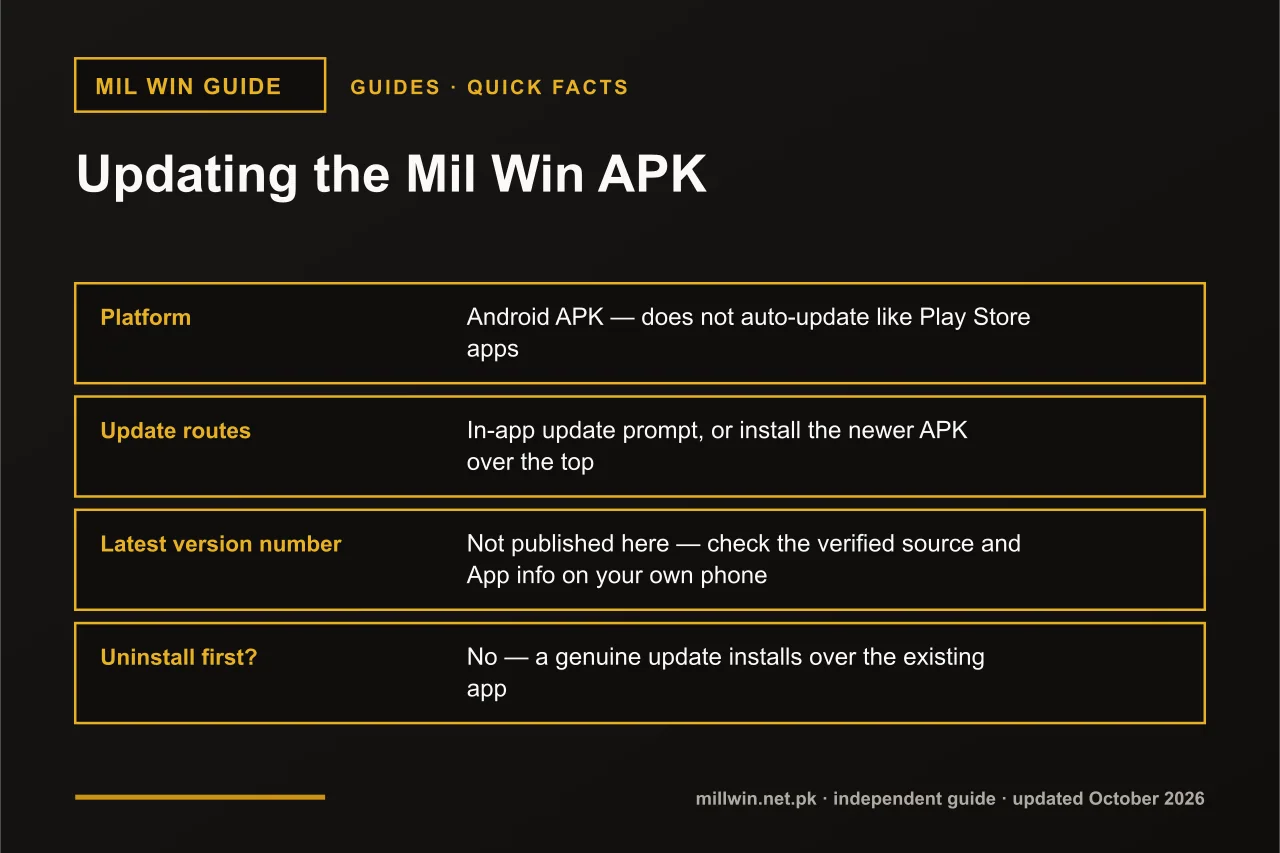
An installed APK may stop working correctly after the platform updates its app or backend systems. Possible signs include the app closing immediately, games failing to load, a persistent update message, a frozen login screen, or buttons that stop responding.
If you suspect an outdated build, check whether a newer version is available from the source you already trust. Do not install the "latest version" from a random search result — third-party sites sometimes publish conflicting files. Also avoid anything described as hacked, MOD, or an unlimited-balance build.
Read the Mil Win APK download guide →
Clear the App Cache
Android applications store data so they load faster. Over time, those cached files can occasionally become corrupted.
Clearing the cache may help if Mil Win freezes during launch, remains on the logo screen, behaves strangely after an update, or crashes. On most Android phones the option is under:
Settings → Apps → Mil Win → Storage → Clear Cache
Menu names vary by manufacturer and Android version. Start with Clear Cache, not Clear Data — clearing all app data may remove local settings and require you to sign in again.
Make Sure Your Phone Has Enough Free Storage
Android needs free space for cache, temporary files, updates and normal app operation. If a phone is almost completely full, the app may become slow or fail to start.
Check your storage settings and remove files you no longer need — old videos, duplicate downloads, unused apps and previous APK files often take up unnecessary space. Restart the phone afterward and try opening the app again.
Check Your Android Version and Date/Time
A newer app build may not work correctly on an older Android device. Check your version under Settings → About Phone, and install an official Android update if one is available for your device.
It is also easy to overlook the device clock. Apps that connect to online services can run into authentication or connection problems when the date and time are badly incorrect. Set the device to update date and time automatically, then close and reopen the app.
Mil Win Opens but Stays on a Loading Screen
If the app reaches its logo or home screen but keeps loading, likely causes include poor internet, a temporary server response issue, outdated app data, a session problem, or a network restriction.
Change your connection and retry first. If the issue remains, close the app completely, wait briefly, and reopen it — clearing the cache may also help. Avoid repeatedly uninstalling and reinstalling without identifying the cause; that will not fix a network or server-side issue.
Mil Win Opens and Immediately Crashes
An immediate crash is more likely to involve the app itself or the device environment. Check whether the APK installed completely, your phone has free storage, Android is reasonably current, the app was recently updated, and whether other apps are also crashing.
If crashes started right after installing a new APK, verify the source of that file before doing anything else. Downloading different versions from unrelated websites can make troubleshooting harder and may expose your phone to unsafe files.
Mil Win Login Page Is Not Loading
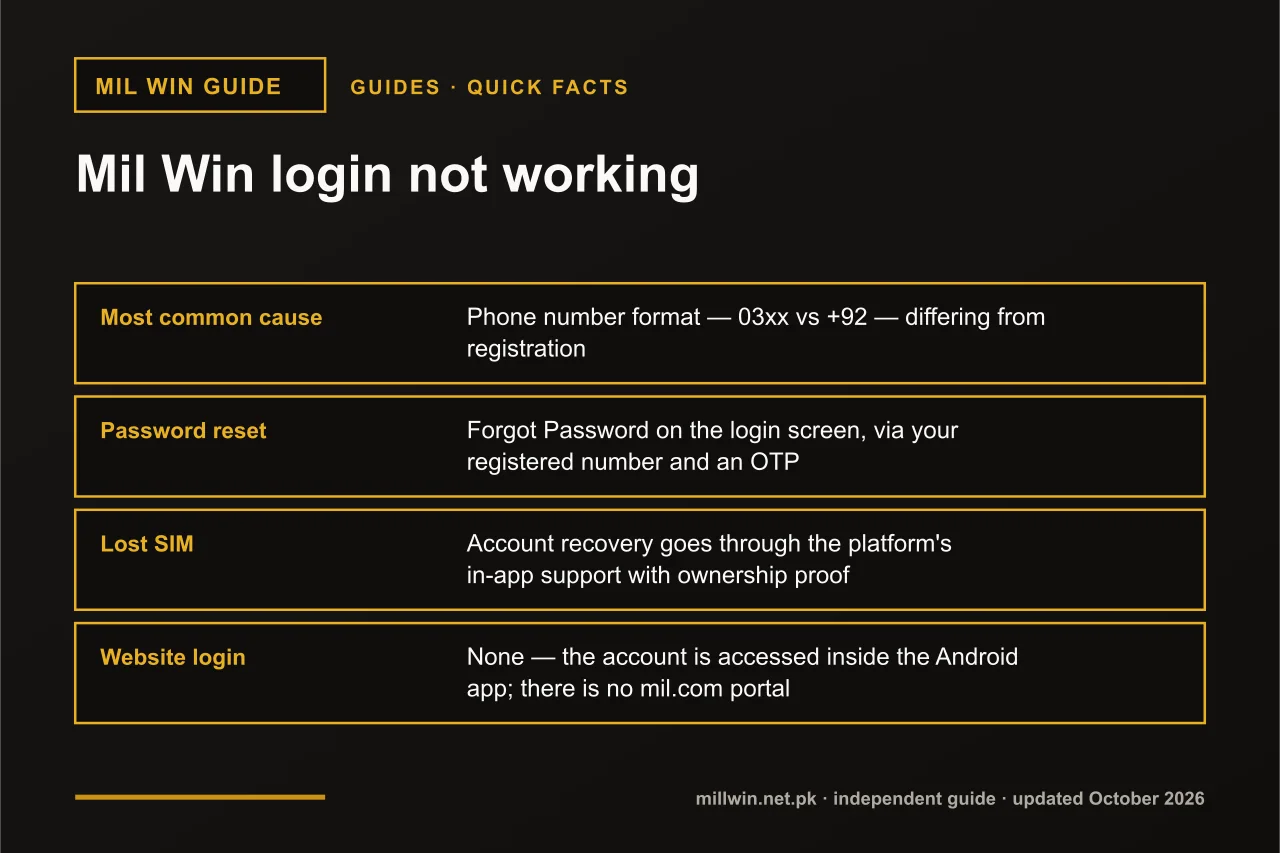
If the app opens but stops at the login screen, treat that as an account-access problem rather than a general app failure. Check your connection first, then confirm you are using the expected app version, that your credentials are correct, and that no OTP request is still pending.
Do not reset your password simply because a page is slow. If the app itself works but you cannot access your account, follow the login troubleshooting guide instead — that keeps account problems separate from app-launch problems.
See how Mil Win account access works →
Reinstall the App When Necessary
Reinstallation can help when the application files have genuinely become damaged, but it should not be the first solution. Before uninstalling, make sure you know your registered phone number, your login credentials, how to recover your account, and where you will get the replacement APK.
Check Whether the Problem Is With Mil Win Online
Sometimes the phone is working perfectly and the issue is a temporary platform-side problem affecting many users at once. A clue is when your internet works normally, other apps open, restarting changes nothing, and the same issue appears on another device or connection.
In that case, changing every setting on your phone is unlikely to help. Try again later using the access method you have already verified, instead of installing unfamiliar alternative versions.
Avoid These "Quick Fixes"
When an app will not open, it is tempting to follow whatever instructions promise a fast fix. Avoid any advice that tells you to disable all Android security, install a MOD APK, download a "100% working hack" version, share your OTP, give someone remote access to your phone, pay a fee to unlock the app, or provide your wallet PIN.
A technical problem should never require giving account or payment details to another person.
Quick Troubleshooting Order
If you want a simple order to follow:
- Check that your internet works.
- Close and reopen the app.
- Restart your phone.
- Confirm you are using the expected APK version.
- Clear the app cache.
- Check free storage.
- Review Android compatibility.
- Check the device date and time.
- Test another network.
- Reinstall only if the app files appear damaged.
Working through this order helps you avoid changes that were never the cause.
Conclusion
When the Mil Win app is not opening, reinstalling the APK should not be the first reaction. Start with the basics — connection, restart, cache, storage and app version — before replacing anything.
If you do need a fresh installation, verify the download source before replacing the existing app, and never share your password, OTP or payment details with someone offering a technical fix.
Frequently Asked Questions
Why is my Mil Win app not opening?
The cause may be your connection, a damaged cache, an outdated APK, insufficient storage, a device compatibility issue, or a temporary platform problem. Start with your connection and a restart before reinstalling anything.
Why does Mil Win keep crashing?
Repeated crashes can be caused by corrupted app files, an incompatible APK build, low storage, or an Android compatibility problem.
Should I reinstall Mil Win if it does not open?
Not immediately. Check the internet connection, restart the device, clear the cache and confirm your app version first. Reinstall only when there is a clear sign the installation is damaged.
Will clearing the Mil Win cache delete my account?
Clearing cache is different from clearing all app data. Avoid Clear Data unless you understand what local information may be removed and have your login credentials ready.
Related reading
- Guides
 Mil Win Game Loading Problem on Android — What to Check
Guides · 5 min read
Mil Win Game Loading Problem on Android — What to Check
- Guides
 Mil Win APK Latest Version: How to Check and Update Safely
Guides · 8 min read
Mil Win APK Latest Version: How to Check and Update Safely
- Guides
 Mil Win Login Not Working? Causes, Fixes and Account Recovery
Guides · 10 min read
Mil Win Login Not Working? Causes, Fixes and Account Recovery